
Instagram Feed Not Updating on Squarespace? Here’s How to Fix It.
If you have an Instagram feed displayed on your Squarespace website, you may occasionally notice that it gets stuck and doesn’t have your latest posts first.
Why does this happen?
Your Squarespace Instagram feed relies on a connection between Squarespace and Instagram to pull your latest content onto your website.
From time to time, that connection can stop working properly. Changes to Instagram’s API (the technology that allows Instagram and other platforms to communicate) can affect how the feed works.
How to reset your Instagram feed on Squarespace
Step 1: Login to Instagram from the browser you use to update Squarespace
Log into your Instagram (or make sure you are already logged in to the correct account). This will make everything in the next few steps easier.
Step 2: Log into Squarespace
Log into your Squarespace account and open the website where your Instagram feed is located. Go to the page where your Instagram feed is located.
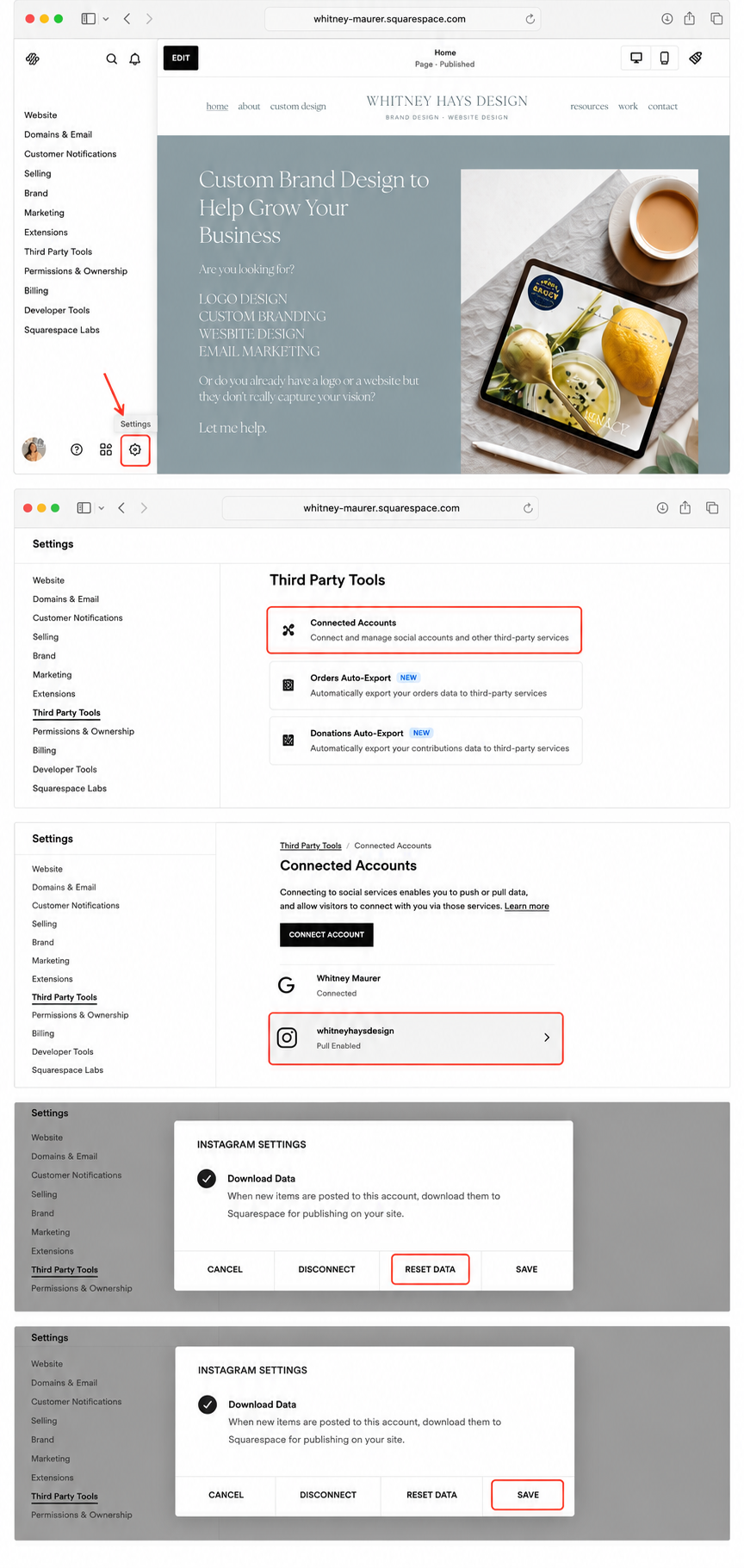
Step 3: Go to Settings, Third Party Tools, Connected Accounts
From your Squarespace dashboard, go to:
Settings (gear icon in lower left corner)→ Third Party Tools → Connected Accounts
Step 4: Reauthenticate your Instagram account
Under Connected Accounts, you should see your Instagram account (photo included here shows mine). Click on your Instagram account and a pop up window appears called Instagram Settings.
Step 5: Reset the Instagram data
Once you’re in your Instagram settings, click Reset Data. Then click, Save.
Step 6: Check your website
Go back to the page on your website where your Instagram feed appears and refresh the page.
You may need to give Squarespace a little time to pull in the updated content. Instagram blocks don't necessarily update immediately. It might help to clear your browser history in your browser settings.
Give it 15 minutes, if it is still not updating, try these next steps. Note this can cause you to have to reset the design of your feed, so before you make any changes, go into the Instagram block and make a note of the current settings. Here are the steps:
Go to the page where your Instagram feed is located.
Scroll down to the feed and hover over it until you see the blue box and Instagram label on the top left. Click the pencil icon.
A pop up box appears. Make sure the Connected Account is correct in the dropdown menu. Make a note of how many items are listed under the Connected Account.
Then click the Design tab in the pop up box and make note of the settings that are already selected.
If the Instagram Block needs to be redone, you will need to redo all these settings in the new block.
Now try disconnecting and reconnecting your Instagram account.
Go back to:
Settings → Third Party Tools → Connected Accounts → Instagram
Choose Disconnect, then reconnect your Instagram account.
After reconnecting, go back to your Instagram block and make sure the correct Instagram account is selected. Hover over the Instagram block and make sure the correct Instagram account is under Connected Accounts. Sometimes this might cause the block to reset and you’ll need to alter the design settings. Use the same settings that you made note of in the steps above.
…And, if you just don’t want to deal with this on your own?
I’m always available to help my past clients do this for them from time to time but sometimes it gets tricky because I no longer have their Instagram login information. If the steps above are just not working, please don’t hesitate to get in touch and I can help you solve the problem.
Or if you have solved the problem yourself (well done!), be sure to bookmark this post for the next time your Instagram feed decides to stop cooperating.
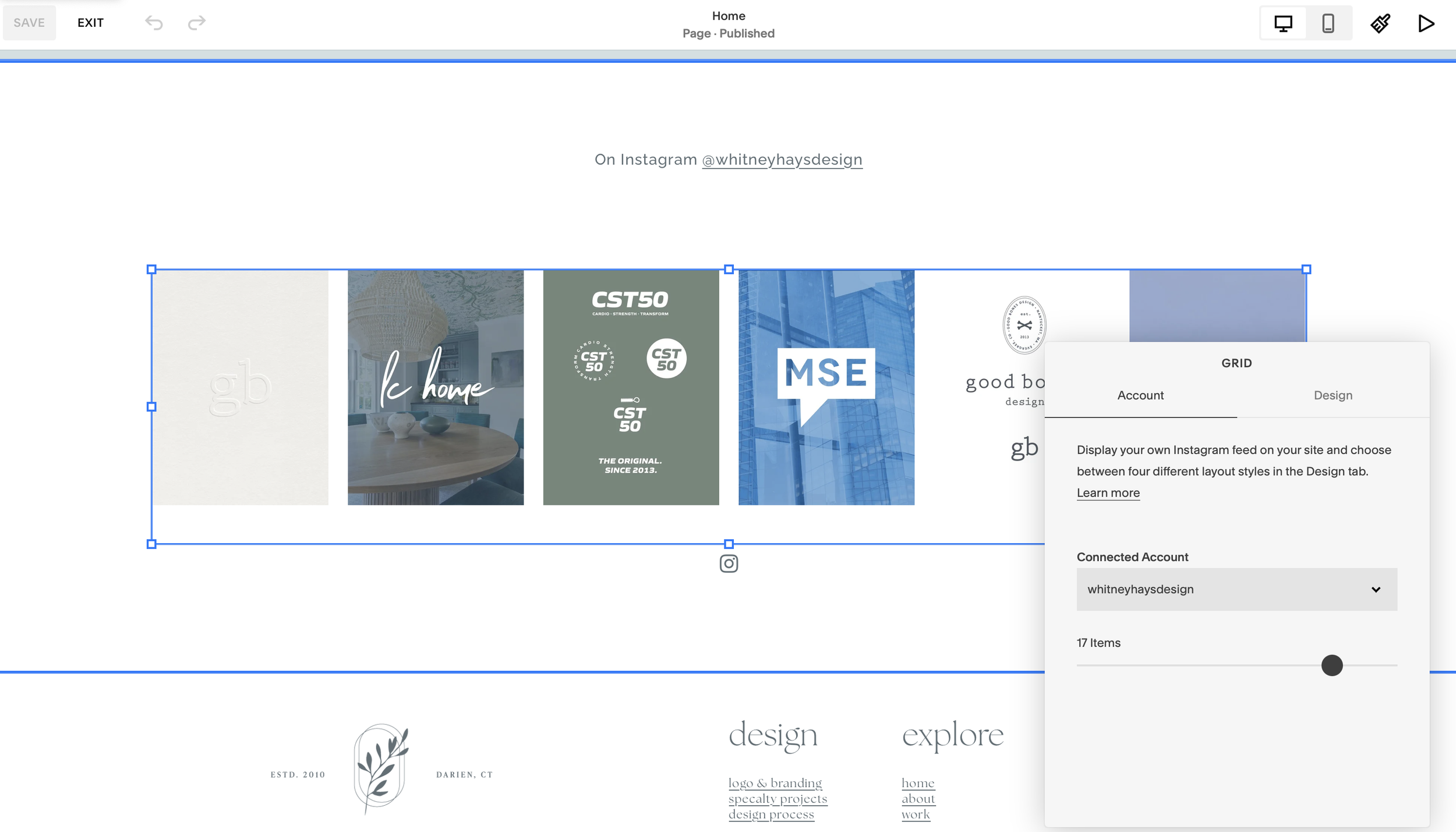
If the above steps are not working, this is where you can update the Instagram Block. Click on the block and make sure the Connected Account is the correct account.
